













NEXUS ONE DOCUMENTATION

Documentation for every app on the Nexus One platform.

Nexus One is a platform of connected business applications. Find guides for each app, and connect your own software and AI systems through the Nexus One API and Nexus One MCP.

Explore Nexus One Apps

Each app has its own documentation. Pick one to see its guides.

Bellum AI
Bellum AI AI-powered business intelligence, agents, analysis, and automation.
View Documentation →
Crypto Payments
Crypto Payments Accept and manage supported cryptocurrency payment workflows.
View Documentation →
Mobile POS
Mobile POS Sell products and manage business transactions from supported mobile devices.
View Documentation →
Driver Tracking
Driver Tracking Manage drivers, vehicles, locations, routes, and fleet activity.
View Documentation →
Smart Website
Smart Website Build, edit, publish, and manage business websites through Nexus One.
View Documentation →
Accounting
Accounting Manage financial operations from Nexus One.
View Documentation →
Calls & Text
Calls & Text Manage business calls and messaging from Nexus One.
View Documentation →
Smart CRM
Smart CRM Manage customers, leads, opportunities, sales activity, and relationships.
View Documentation →
Social Media
Social Media Plan, create, organize, and manage social content from Nexus One.
View Documentation →
Dropshipping
Dropshipping Manage supported commerce and fulfillment workflows.
View Documentation →
HR
HR Manage employees and workforce operations.
View Documentation →
Documents
Documents Store and organize business documents inside Nexus One.
View Documentation →
Discuss
Discuss Internal team communication inside Nexus One.
View Documentation →
Project
Project Manage jobs, projects, tasks, assignments, and business work.
View Documentation →
Ads Manager
COMING SOON
Ads Manager Manage advertising campaigns and performance from Nexus One.
Preview Documentation →

API or MCP?

Security for every connection

Authentication Least privilege Permission scopes Secret management Organization isolation Logging Revocation Human approval for sensitive actions
Never place Nexus One secret keys inside client-side JavaScript, public repositories, screenshots, prompts, or shared documents.
Bellum AI

Getting Started

Getting Started in Bellum AI. AI-powered business intelligence, agents, analysis, and automation.

Steps

  1. 1 Open Bellum AI from the Nexus One app launcher.
  2. 2 Go to Getting Started.
  3. 3 Review the available options and make your changes.
  4. 4 Save. Changes apply to users who have permission for this area.
Bellum AI

AI Agents

AI Agents in Bellum AI. AI-powered business intelligence, agents, analysis, and automation.

Steps

  1. 1 Open Bellum AI from the Nexus One app launcher.
  2. 2 Go to AI Agents.
  3. 3 Review the available options and make your changes.
  4. 4 Save. Changes apply to users who have permission for this area.
Bellum AI

Asking Bellum Questions

Asking Bellum Questions in Bellum AI. AI-powered business intelligence, agents, analysis, and automation.

Steps

  1. 1 Open Bellum AI from the Nexus One app launcher.
  2. 2 Go to Asking Bellum Questions.
  3. 3 Review the available options and make your changes.
  4. 4 Save. Changes apply to users who have permission for this area.
Bellum AI

AI Actions

AI Actions in Bellum AI. AI-powered business intelligence, agents, analysis, and automation.

Steps

  1. 1 Open Bellum AI from the Nexus One app launcher.
  2. 2 Go to AI Actions.
  3. 3 Review the available options and make your changes.
  4. 4 Save. Changes apply to users who have permission for this area.
Bellum AI

AI Approvals

AI Approvals in Bellum AI. AI-powered business intelligence, agents, analysis, and automation.

Steps

  1. 1 Open Bellum AI from the Nexus One app launcher.
  2. 2 Go to AI Approvals.
  3. 3 Review the available options and make your changes.
  4. 4 Save. Changes apply to users who have permission for this area.
Bellum AI

AI Permissions

AI Permissions in Bellum AI. AI-powered business intelligence, agents, analysis, and automation.

Steps

  1. 1 Open Bellum AI from the Nexus One app launcher.
  2. 2 Go to AI Permissions.
  3. 3 Review the available options and make your changes.
  4. 4 Save. Changes apply to users who have permission for this area.
Bellum AI

Connecting Business Data

Connecting Business Data in Bellum AI. AI-powered business intelligence, agents, analysis, and automation.

Steps

  1. 1 Open Bellum AI from the Nexus One app launcher.
  2. 2 Go to Connecting Business Data.
  3. 3 Review the available options and make your changes.
  4. 4 Save. Changes apply to users who have permission for this area.
Bellum AI

Agent Settings

Agent Settings in Bellum AI. AI-powered business intelligence, agents, analysis, and automation.

Steps

  1. 1 Open Bellum AI from the Nexus One app launcher.
  2. 2 Go to Agent Settings.
  3. 3 Review the available options and make your changes.
  4. 4 Save. Changes apply to users who have permission for this area.
Bellum AI

AI Security

AI Security in Bellum AI. AI-powered business intelligence, agents, analysis, and automation.

Steps

  1. 1 Open Bellum AI from the Nexus One app launcher.
  2. 2 Go to AI Security.
  3. 3 Review the available options and make your changes.
  4. 4 Save. Changes apply to users who have permission for this area.
Bellum AI

Responsible AI

Responsible AI in Bellum AI. AI-powered business intelligence, agents, analysis, and automation.

Steps

  1. 1 Open Bellum AI from the Nexus One app launcher.
  2. 2 Go to Responsible AI.
  3. 3 Review the available options and make your changes.
  4. 4 Save. Changes apply to users who have permission for this area.
Bellum AI

Troubleshooting

Troubleshooting in Bellum AI. AI-powered business intelligence, agents, analysis, and automation.

Checklist

  1. 1 Confirm the user has access to Bellum AI and the required permission.
  2. 2 Check System Status for active incidents.
  3. 3 Refresh and try the action again.
  4. 4 Contact Support with what you tried and any error message.
Crypto Payments

Getting Started

Getting Started in Crypto Payments. Accept and manage supported cryptocurrency payment workflows.

Steps

  1. 1 Open Crypto Payments from the Nexus One app launcher.
  2. 2 Go to Getting Started.
  3. 3 Review the available options and make your changes.
  4. 4 Save. Changes apply to users who have permission for this area.
Crypto Payments

Connect a Wallet

Connect a Wallet in Crypto Payments. Accept and manage supported cryptocurrency payment workflows.

Steps

  1. 1 Open Crypto Payments from the Nexus One app launcher.
  2. 2 Go to Connect a Wallet.
  3. 3 Review the available options and make your changes.
  4. 4 Save. Changes apply to users who have permission for this area.
Crypto Payments

Accept Crypto

Accept Crypto in Crypto Payments. Accept and manage supported cryptocurrency payment workflows.

Steps

  1. 1 Open Crypto Payments from the Nexus One app launcher.
  2. 2 Go to Accept Crypto.
  3. 3 Review the available options and make your changes.
  4. 4 Save. Changes apply to users who have permission for this area.
Crypto Payments

Payment Statuses

Payment Statuses in Crypto Payments. Accept and manage supported cryptocurrency payment workflows.

Steps

  1. 1 Open Crypto Payments from the Nexus One app launcher.
  2. 2 Go to Payment Statuses.
  3. 3 Review the available options and make your changes.
  4. 4 Save. Changes apply to users who have permission for this area.
Crypto Payments

Transactions

Transactions in Crypto Payments. Accept and manage supported cryptocurrency payment workflows.

Steps

  1. 1 Open Crypto Payments from the Nexus One app launcher.
  2. 2 Go to Transactions.
  3. 3 Review the available options and make your changes.
  4. 4 Save. Changes apply to users who have permission for this area.
Crypto Payments

Refund Workflows

Refund Workflows in Crypto Payments. Accept and manage supported cryptocurrency payment workflows.

Steps

  1. 1 Open Crypto Payments from the Nexus One app launcher.
  2. 2 Go to Refund Workflows.
  3. 3 Review the available options and make your changes.
  4. 4 Save. Changes apply to users who have permission for this area.
Crypto Payments

Security

Security in Crypto Payments. Accept and manage supported cryptocurrency payment workflows.

Steps

  1. 1 Open Crypto Payments from the Nexus One app launcher.
  2. 2 Go to Security.
  3. 3 Review the available options and make your changes.
  4. 4 Save. Changes apply to users who have permission for this area.
Crypto Payments

Troubleshooting

Troubleshooting in Crypto Payments. Accept and manage supported cryptocurrency payment workflows.

Checklist

  1. 1 Confirm the user has access to Crypto Payments and the required permission.
  2. 2 Check System Status for active incidents.
  3. 3 Refresh and try the action again.
  4. 4 Contact Support with what you tried and any error message.
Mobile POS MP

Mobile POS

Sell products and manage business transactions from supported mobile devices.

Nexus One dashboard
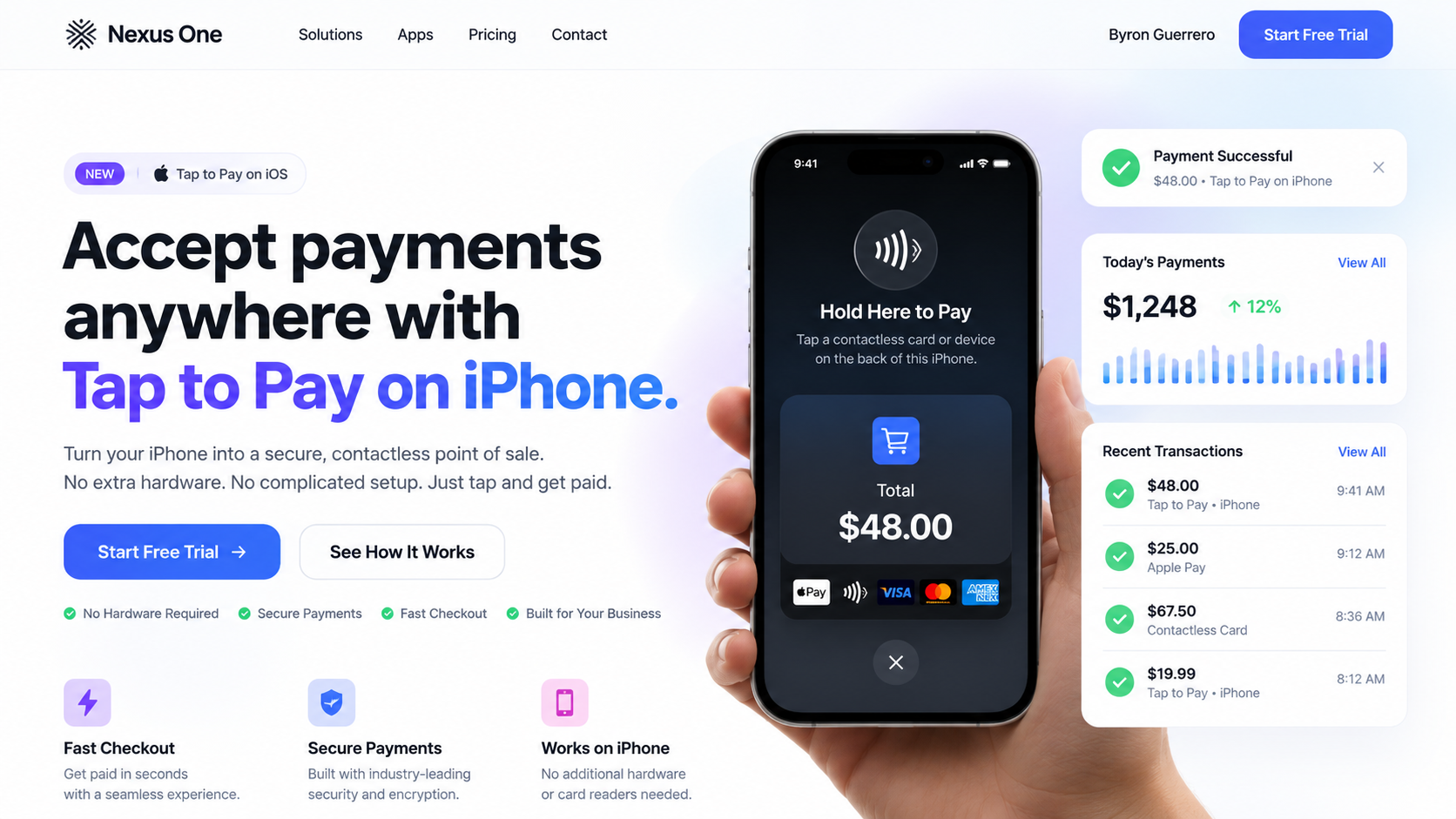
Tap to Pay on iPhone: contactless checkout, payment confirmation, today's totals, and recent transactions.
Mobile POS

POS Setup

POS Setup in Mobile POS. Sell products and manage business transactions from supported mobile devices.

Steps

  1. 1 Open Mobile POS from the Nexus One app launcher.
  2. 2 Go to POS Setup.
  3. 3 Review the available options and make your changes.
  4. 4 Save. Changes apply to users who have permission for this area.
Mobile POS

Products

Products in Mobile POS. Sell products and manage business transactions from supported mobile devices.

Steps

  1. 1 Open Mobile POS from the Nexus One app launcher.
  2. 2 Go to Products.
  3. 3 Review the available options and make your changes.
  4. 4 Save. Changes apply to users who have permission for this area.
Mobile POS

Customers

Customers in Mobile POS. Sell products and manage business transactions from supported mobile devices.

Steps

  1. 1 Open Mobile POS from the Nexus One app launcher.
  2. 2 Go to Customers.
  3. 3 Review the available options and make your changes.
  4. 4 Save. Changes apply to users who have permission for this area.
Mobile POS

Create a Sale

Create a Sale in Mobile POS. Sell products and manage business transactions from supported mobile devices.

Steps

  1. 1 Open Mobile POS from the Nexus One app launcher.
  2. 2 Go to Create a Sale.
  3. 3 Review the available options and make your changes.
  4. 4 Save. Changes apply to users who have permission for this area.
Mobile POS

Receipts

Receipts in Mobile POS. Sell products and manage business transactions from supported mobile devices.

Steps

  1. 1 Open Mobile POS from the Nexus One app launcher.
  2. 2 Go to Receipts.
  3. 3 Review the available options and make your changes.
  4. 4 Save. Changes apply to users who have permission for this area.
Mobile POS

Payment Methods

Payment Methods in Mobile POS. Sell products and manage business transactions from supported mobile devices.

Nexus One dashboard

Steps

  1. 1 Open Mobile POS from the Nexus One app launcher.
  2. 2 Go to Payment Methods.
  3. 3 Review the available options and make your changes.
  4. 4 Save. Changes apply to users who have permission for this area.
Mobile POS

Orders

Orders in Mobile POS. Sell products and manage business transactions from supported mobile devices.

Steps

  1. 1 Open Mobile POS from the Nexus One app launcher.
  2. 2 Go to Orders.
  3. 3 Review the available options and make your changes.
  4. 4 Save. Changes apply to users who have permission for this area.
Mobile POS

Devices

Devices in Mobile POS. Sell products and manage business transactions from supported mobile devices.

Steps

  1. 1 Open Mobile POS from the Nexus One app launcher.
  2. 2 Go to Devices.
  3. 3 Review the available options and make your changes.
  4. 4 Save. Changes apply to users who have permission for this area.
Mobile POS

Troubleshooting

Troubleshooting in Mobile POS. Sell products and manage business transactions from supported mobile devices.

Checklist

  1. 1 Confirm the user has access to Mobile POS and the required permission.
  2. 2 Check System Status for active incidents.
  3. 3 Refresh and try the action again.
  4. 4 Contact Support with what you tried and any error message.
Driver Tracking

Fleet Dashboard

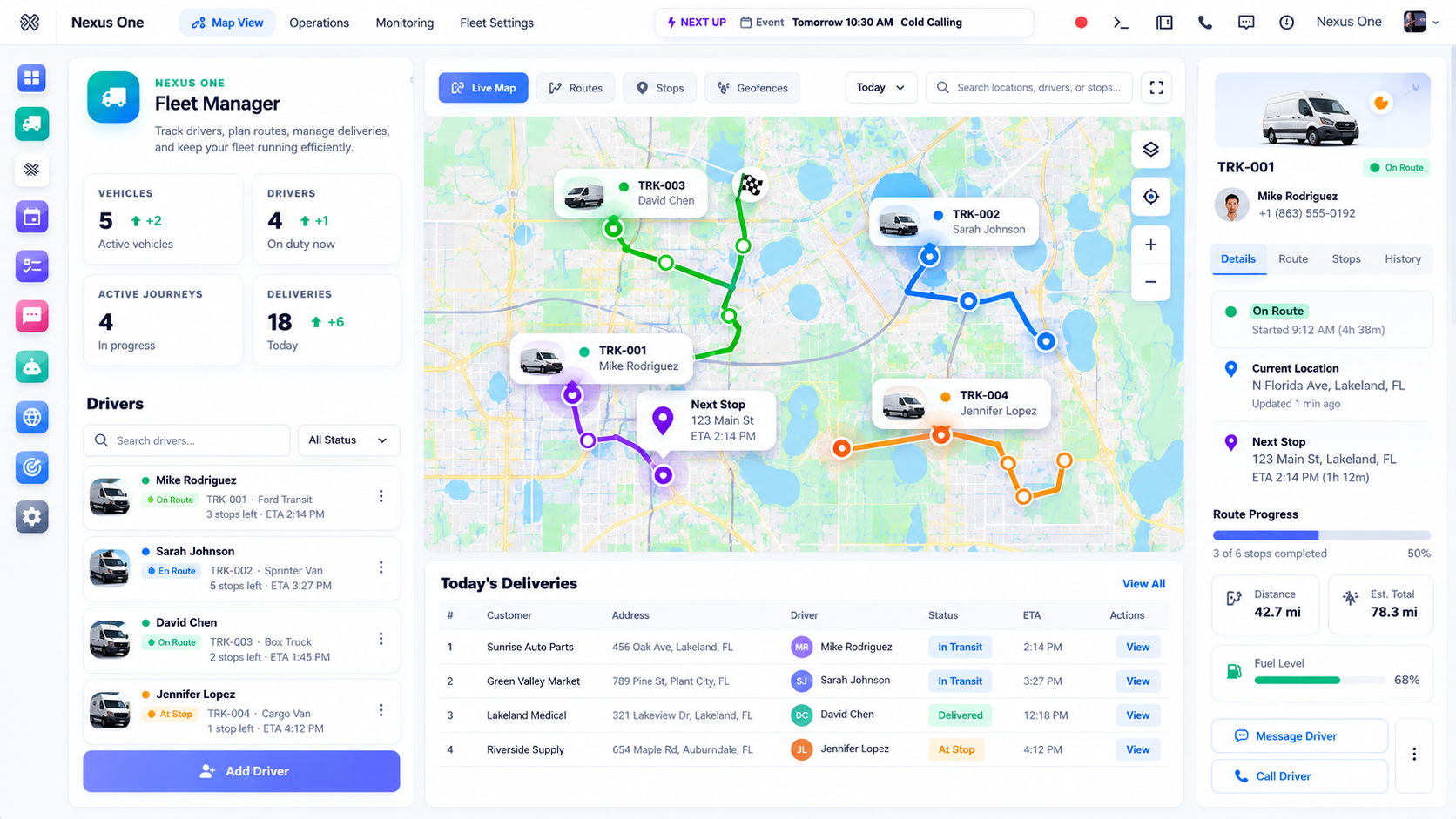
Fleet Dashboard in Driver Tracking. Manage drivers, vehicles, locations, routes, and fleet activity.

Nexus One dashboard

Steps

  1. 1 Open Driver Tracking from the Nexus One app launcher.
  2. 2 Go to Fleet Dashboard.
  3. 3 Review the available options and make your changes.
  4. 4 Save. Changes apply to users who have permission for this area.
Driver Tracking

Add Drivers

Add Drivers in Driver Tracking. Manage drivers, vehicles, locations, routes, and fleet activity.

Steps

  1. 1 Open Driver Tracking from the Nexus One app launcher.
  2. 2 Go to Add Drivers.
  3. 3 Review the available options and make your changes.
  4. 4 Save. Changes apply to users who have permission for this area.
Driver Tracking

Add Vehicles

Add Vehicles in Driver Tracking. Manage drivers, vehicles, locations, routes, and fleet activity.

Steps

  1. 1 Open Driver Tracking from the Nexus One app launcher.
  2. 2 Go to Add Vehicles.
  3. 3 Review the available options and make your changes.
  4. 4 Save. Changes apply to users who have permission for this area.
Driver Tracking

Live Location

Live Location in Driver Tracking. Manage drivers, vehicles, locations, routes, and fleet activity.

Steps

  1. 1 Open Driver Tracking from the Nexus One app launcher.
  2. 2 Go to Live Location.
  3. 3 Review the available options and make your changes.
  4. 4 Save. Changes apply to users who have permission for this area.
Driver Tracking

Driver Status

Driver Status in Driver Tracking. Manage drivers, vehicles, locations, routes, and fleet activity.

Steps

  1. 1 Open Driver Tracking from the Nexus One app launcher.
  2. 2 Go to Driver Status.
  3. 3 Review the available options and make your changes.
  4. 4 Save. Changes apply to users who have permission for this area.
Driver Tracking

Routes

Routes in Driver Tracking. Manage drivers, vehicles, locations, routes, and fleet activity.

Steps

  1. 1 Open Driver Tracking from the Nexus One app launcher.
  2. 2 Go to Routes.
  3. 3 Review the available options and make your changes.
  4. 4 Save. Changes apply to users who have permission for this area.
Driver Tracking

Route History

Route History in Driver Tracking. Manage drivers, vehicles, locations, routes, and fleet activity.

Steps

  1. 1 Open Driver Tracking from the Nexus One app launcher.
  2. 2 Go to Route History.
  3. 3 Review the available options and make your changes.
  4. 4 Save. Changes apply to users who have permission for this area.
Driver Tracking

Vehicle Assignment

Vehicle Assignment in Driver Tracking. Manage drivers, vehicles, locations, routes, and fleet activity.

Steps

  1. 1 Open Driver Tracking from the Nexus One app launcher.
  2. 2 Go to Vehicle Assignment.
  3. 3 Review the available options and make your changes.
  4. 4 Save. Changes apply to users who have permission for this area.
Driver Tracking

Employee Access

Employee Access in Driver Tracking. Manage drivers, vehicles, locations, routes, and fleet activity.

Steps

  1. 1 Open Driver Tracking from the Nexus One app launcher.
  2. 2 Go to Employee Access.
  3. 3 Review the available options and make your changes.
  4. 4 Save. Changes apply to users who have permission for this area.
Driver Tracking

Location Permissions

Location Permissions in Driver Tracking. Manage drivers, vehicles, locations, routes, and fleet activity.

Steps

  1. 1 Open Driver Tracking from the Nexus One app launcher.
  2. 2 Go to Location Permissions.
  3. 3 Review the available options and make your changes.
  4. 4 Save. Changes apply to users who have permission for this area.
Driver Tracking

Mobile App

Mobile App in Driver Tracking. Manage drivers, vehicles, locations, routes, and fleet activity.

Steps

  1. 1 Open Driver Tracking from the Nexus One app launcher.
  2. 2 Go to Mobile App.
  3. 3 Review the available options and make your changes.
  4. 4 Save. Changes apply to users who have permission for this area.
Driver Tracking

Troubleshooting

Troubleshooting in Driver Tracking. Manage drivers, vehicles, locations, routes, and fleet activity.

Checklist

  1. 1 Confirm the user has access to Driver Tracking and the required permission.
  2. 2 Check System Status for active incidents.
  3. 3 Refresh and try the action again.
  4. 4 Contact Support with what you tried and any error message.
Smart Website SW

Smart Website

Build, edit, publish, and manage business websites through Nexus One.

Nexus One dashboard
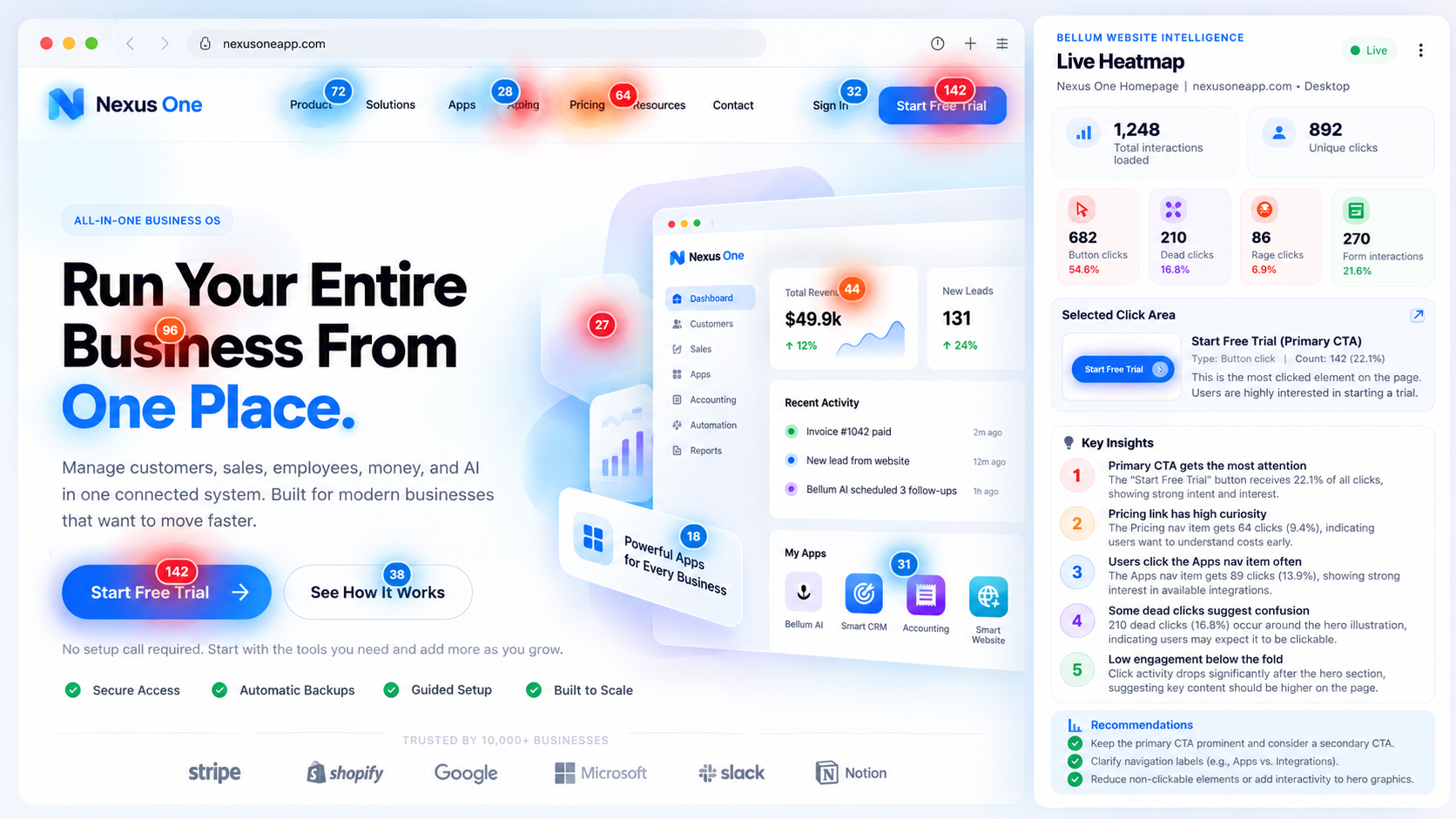
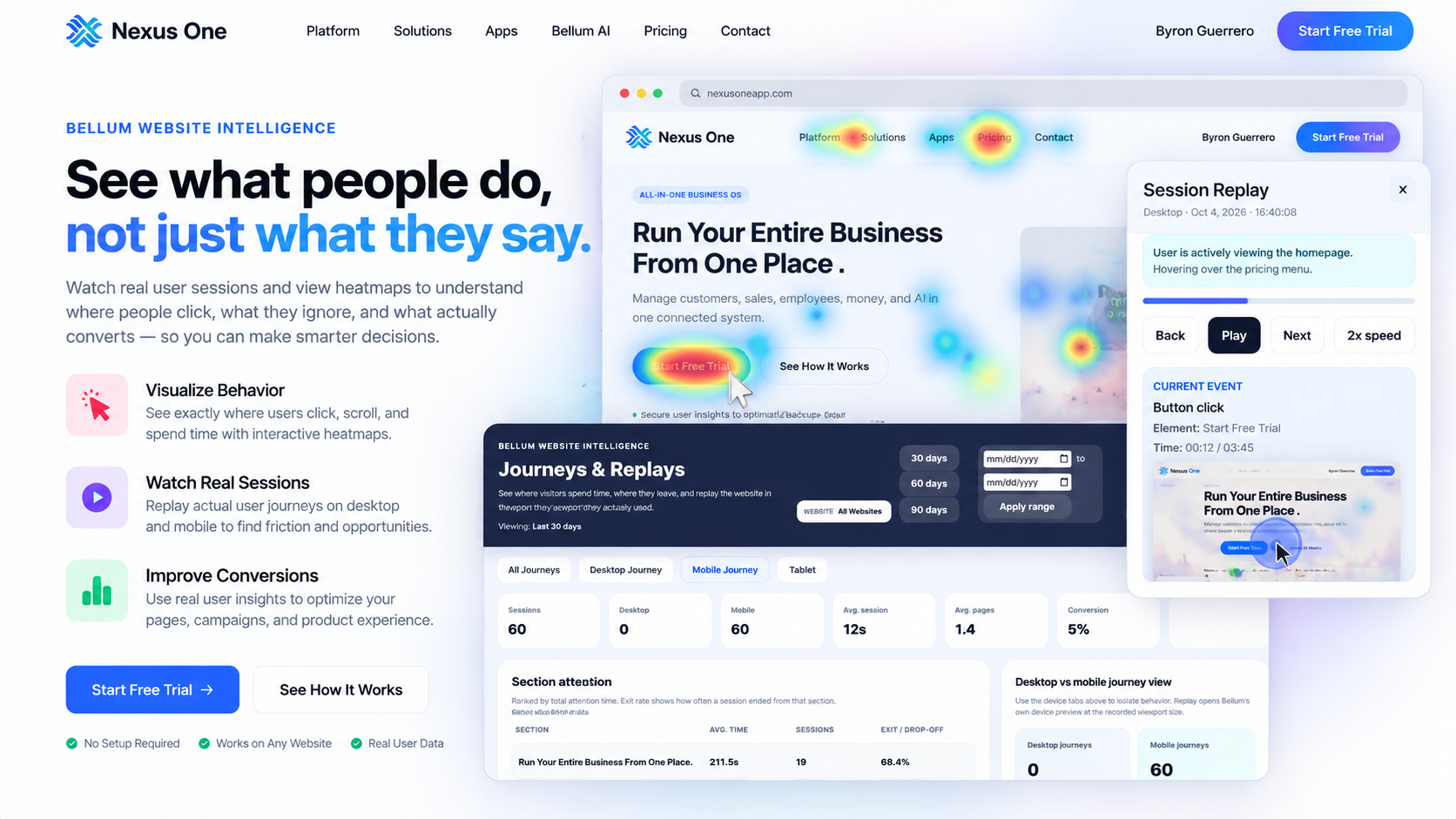
Website Intelligence: live heatmap, click breakdown, selected click area, key insights, and recommendations.
Smart Website

Create a Website

Create a Website in Smart Website. Build, edit, publish, and manage business websites through Nexus One.

Steps

  1. 1 Open Smart Website from the Nexus One app launcher.
  2. 2 Go to Create a Website.
  3. 3 Review the available options and make your changes.
  4. 4 Save. Changes apply to users who have permission for this area.
Smart Website

Website Builder

Website Builder in Smart Website. Build, edit, publish, and manage business websites through Nexus One.

Steps

  1. 1 Open Smart Website from the Nexus One app launcher.
  2. 2 Go to Website Builder.
  3. 3 Review the available options and make your changes.
  4. 4 Save. Changes apply to users who have permission for this area.
Smart Website

Pages

Pages in Smart Website. Build, edit, publish, and manage business websites through Nexus One.

Steps

  1. 1 Open Smart Website from the Nexus One app launcher.
  2. 2 Go to Pages.
  3. 3 Review the available options and make your changes.
  4. 4 Save. Changes apply to users who have permission for this area.
Smart Website

Edit Content

Edit Content in Smart Website. Build, edit, publish, and manage business websites through Nexus One.

Steps

  1. 1 Open Smart Website from the Nexus One app launcher.
  2. 2 Go to Edit Content.
  3. 3 Review the available options and make your changes.
  4. 4 Save. Changes apply to users who have permission for this area.
Smart Website

AI Website Builder

AI Website Builder in Smart Website. Build, edit, publish, and manage business websites through Nexus One.

Steps

  1. 1 Open Smart Website from the Nexus One app launcher.
  2. 2 Go to AI Website Builder.
  3. 3 Review the available options and make your changes.
  4. 4 Save. Changes apply to users who have permission for this area.
Smart Website

Images

Images in Smart Website. Build, edit, publish, and manage business websites through Nexus One.

Steps

  1. 1 Open Smart Website from the Nexus One app launcher.
  2. 2 Go to Images.
  3. 3 Review the available options and make your changes.
  4. 4 Save. Changes apply to users who have permission for this area.
Smart Website

Navigation

Navigation in Smart Website. Build, edit, publish, and manage business websites through Nexus One.

Steps

  1. 1 Open Smart Website from the Nexus One app launcher.
  2. 2 Go to Navigation.
  3. 3 Review the available options and make your changes.
  4. 4 Save. Changes apply to users who have permission for this area.
Smart Website

Forms

Forms in Smart Website. Build, edit, publish, and manage business websites through Nexus One.

Steps

  1. 1 Open Smart Website from the Nexus One app launcher.
  2. 2 Go to Forms.
  3. 3 Review the available options and make your changes.
  4. 4 Save. Changes apply to users who have permission for this area.
Smart Website

Mobile Layout

Mobile Layout in Smart Website. Build, edit, publish, and manage business websites through Nexus One.

Steps

  1. 1 Open Smart Website from the Nexus One app launcher.
  2. 2 Go to Mobile Layout.
  3. 3 Review the available options and make your changes.
  4. 4 Save. Changes apply to users who have permission for this area.
Smart Website

SEO

SEO in Smart Website. Build, edit, publish, and manage business websites through Nexus One.

Steps

  1. 1 Open Smart Website from the Nexus One app launcher.
  2. 2 Go to SEO.
  3. 3 Review the available options and make your changes.
  4. 4 Save. Changes apply to users who have permission for this area.
Smart Website

Domains

Domains in Smart Website. Build, edit, publish, and manage business websites through Nexus One.

Steps

  1. 1 Open Smart Website from the Nexus One app launcher.
  2. 2 Go to Domains.
  3. 3 Review the available options and make your changes.
  4. 4 Save. Changes apply to users who have permission for this area.
Smart Website

Publishing

Publishing in Smart Website. Build, edit, publish, and manage business websites through Nexus One.

Steps

  1. 1 Open Smart Website from the Nexus One app launcher.
  2. 2 Go to Publishing.
  3. 3 Review the available options and make your changes.
  4. 4 Save. Changes apply to users who have permission for this area.
Smart Website

Versions

Versions in Smart Website. Build, edit, publish, and manage business websites through Nexus One.

Steps

  1. 1 Open Smart Website from the Nexus One app launcher.
  2. 2 Go to Versions.
  3. 3 Review the available options and make your changes.
  4. 4 Save. Changes apply to users who have permission for this area.
Smart Website

Analytics

Analytics in Smart Website. Build, edit, publish, and manage business websites through Nexus One.

Nexus One dashboard

Steps

  1. 1 Open Smart Website from the Nexus One app launcher.
  2. 2 Go to Analytics.
  3. 3 Review the available options and make your changes.
  4. 4 Save. Changes apply to users who have permission for this area.
Smart Website

Troubleshooting

Troubleshooting in Smart Website. Build, edit, publish, and manage business websites through Nexus One.

Checklist

  1. 1 Confirm the user has access to Smart Website and the required permission.
  2. 2 Check System Status for active incidents.
  3. 3 Refresh and try the action again.
  4. 4 Contact Support with what you tried and any error message.
Accounting A

Accounting

Manage financial operations from Nexus One.

Nexus One dashboard
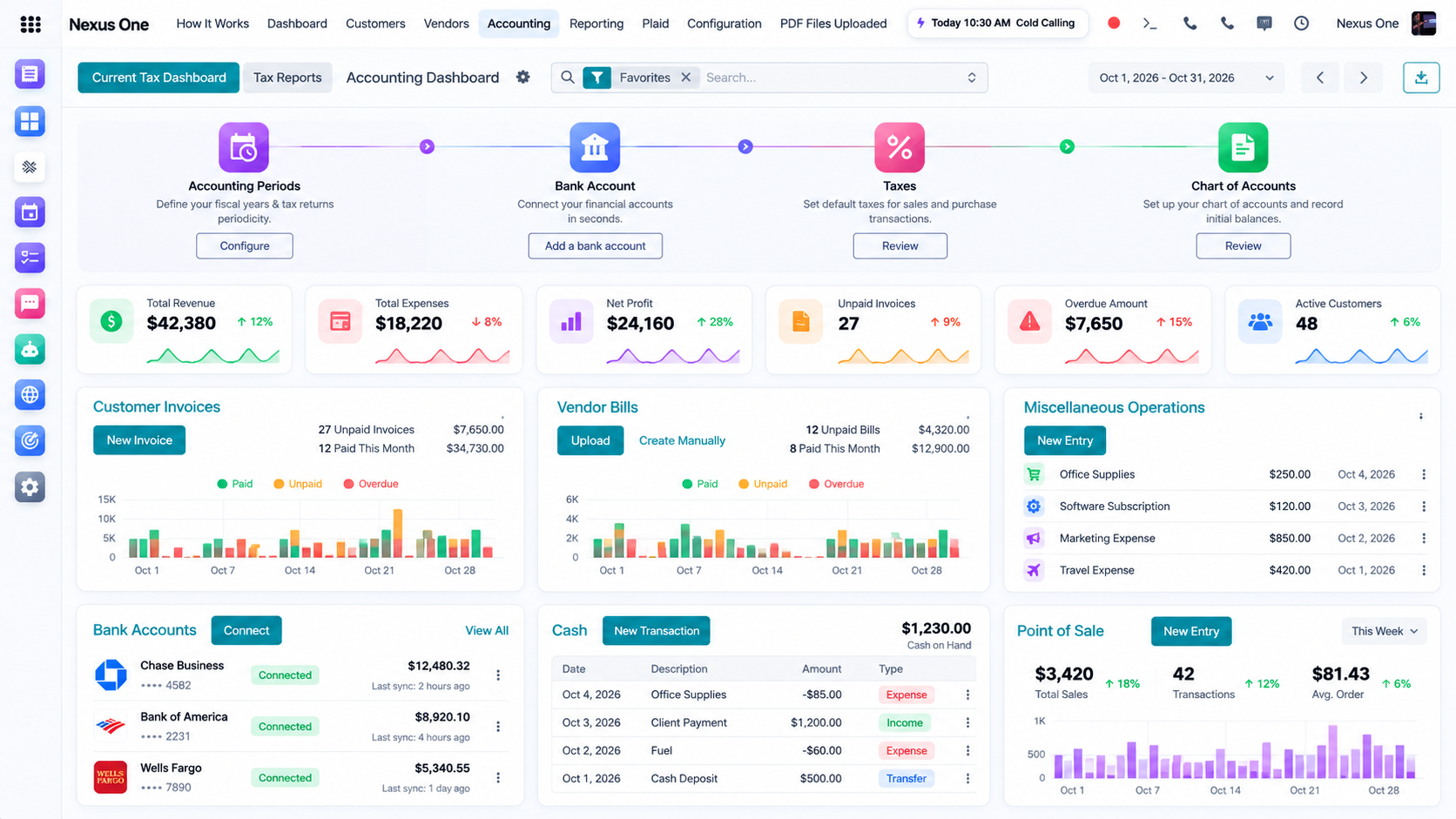
Accounting dashboard: setup steps, key financials, invoices, bills, bank accounts, cash, and POS sales.
Accounting

Dashboard

Dashboard in Accounting. Manage financial operations from Nexus One.

Nexus One dashboard

Steps

  1. 1 Open Accounting from the Nexus One app launcher.
  2. 2 Go to Dashboard.
  3. 3 Review the available options and make your changes.
  4. 4 Save. Changes apply to users who have permission for this area.
Accounting

Customers

Customers in Accounting. Manage financial operations from Nexus One.

Steps

  1. 1 Open Accounting from the Nexus One app launcher.
  2. 2 Go to Customers.
  3. 3 Review the available options and make your changes.
  4. 4 Save. Changes apply to users who have permission for this area.
Accounting

Vendors

Vendors in Accounting. Manage financial operations from Nexus One.

Steps

  1. 1 Open Accounting from the Nexus One app launcher.
  2. 2 Go to Vendors.
  3. 3 Review the available options and make your changes.
  4. 4 Save. Changes apply to users who have permission for this area.
Accounting

Invoices

Invoices in Accounting. Manage financial operations from Nexus One.

Steps

  1. 1 Open Accounting from the Nexus One app launcher.
  2. 2 Go to Invoices.
  3. 3 Review the available options and make your changes.
  4. 4 Save. Changes apply to users who have permission for this area.
Accounting

Bills

Bills in Accounting. Manage financial operations from Nexus One.

Steps

  1. 1 Open Accounting from the Nexus One app launcher.
  2. 2 Go to Bills.
  3. 3 Review the available options and make your changes.
  4. 4 Save. Changes apply to users who have permission for this area.
Accounting

Payments

Payments in Accounting. Manage financial operations from Nexus One.

Steps

  1. 1 Open Accounting from the Nexus One app launcher.
  2. 2 Go to Payments.
  3. 3 Review the available options and make your changes.
  4. 4 Save. Changes apply to users who have permission for this area.
Accounting

Expenses

Expenses in Accounting. Manage financial operations from Nexus One.

Steps

  1. 1 Open Accounting from the Nexus One app launcher.
  2. 2 Go to Expenses.
  3. 3 Review the available options and make your changes.
  4. 4 Save. Changes apply to users who have permission for this area.
Accounting

Products

Products in Accounting. Manage financial operations from Nexus One.

Steps

  1. 1 Open Accounting from the Nexus One app launcher.
  2. 2 Go to Products.
  3. 3 Review the available options and make your changes.
  4. 4 Save. Changes apply to users who have permission for this area.
Accounting

Journal Entries

Journal Entries in Accounting. Manage financial operations from Nexus One.

Steps

  1. 1 Open Accounting from the Nexus One app launcher.
  2. 2 Go to Journal Entries.
  3. 3 Review the available options and make your changes.
  4. 4 Save. Changes apply to users who have permission for this area.
Accounting

Reports

Reports in Accounting. Manage financial operations from Nexus One.

Steps

  1. 1 Open Accounting from the Nexus One app launcher.
  2. 2 Go to Reports.
  3. 3 Review the available options and make your changes.
  4. 4 Save. Changes apply to users who have permission for this area.
Accounting

Settings

Settings in Accounting. Manage financial operations from Nexus One.

Steps

  1. 1 Open Accounting from the Nexus One app launcher.
  2. 2 Go to Settings.
  3. 3 Review the available options and make your changes.
  4. 4 Save. Changes apply to users who have permission for this area.
Accounting

Troubleshooting

Troubleshooting in Accounting. Manage financial operations from Nexus One.

Checklist

  1. 1 Confirm the user has access to Accounting and the required permission.
  2. 2 Check System Status for active incidents.
  3. 3 Refresh and try the action again.
  4. 4 Contact Support with what you tried and any error message.
Calls & Text

Phone Setup

Phone Setup in Calls & Text. Manage business calls and messaging from Nexus One.

Steps

  1. 1 Open Calls & Text from the Nexus One app launcher.
  2. 2 Go to Phone Setup.
  3. 3 Review the available options and make your changes.
  4. 4 Save. Changes apply to users who have permission for this area.
Calls & Text

Users

Users in Calls & Text. Manage business calls and messaging from Nexus One.

Steps

  1. 1 Open Calls & Text from the Nexus One app launcher.
  2. 2 Go to Users.
  3. 3 Review the available options and make your changes.
  4. 4 Save. Changes apply to users who have permission for this area.
Calls & Text

Calling

Calling in Calls & Text. Manage business calls and messaging from Nexus One.

Steps

  1. 1 Open Calls & Text from the Nexus One app launcher.
  2. 2 Go to Calling.
  3. 3 Review the available options and make your changes.
  4. 4 Save. Changes apply to users who have permission for this area.
Calls & Text

SMS

SMS in Calls & Text. Manage business calls and messaging from Nexus One.

Steps

  1. 1 Open Calls & Text from the Nexus One app launcher.
  2. 2 Go to SMS.
  3. 3 Review the available options and make your changes.
  4. 4 Save. Changes apply to users who have permission for this area.
Calls & Text

Call History

Call History in Calls & Text. Manage business calls and messaging from Nexus One.

Steps

  1. 1 Open Calls & Text from the Nexus One app launcher.
  2. 2 Go to Call History.
  3. 3 Review the available options and make your changes.
  4. 4 Save. Changes apply to users who have permission for this area.
Calls & Text

Contacts

Contacts in Calls & Text. Manage business calls and messaging from Nexus One.

Steps

  1. 1 Open Calls & Text from the Nexus One app launcher.
  2. 2 Go to Contacts.
  3. 3 Review the available options and make your changes.
  4. 4 Save. Changes apply to users who have permission for this area.
Calls & Text

Recordings

Recordings in Calls & Text. Manage business calls and messaging from Nexus One.

Steps

  1. 1 Open Calls & Text from the Nexus One app launcher.
  2. 2 Go to Recordings.
  3. 3 Review the available options and make your changes.
  4. 4 Save. Changes apply to users who have permission for this area.
Calls & Text

Notifications

Notifications in Calls & Text. Manage business calls and messaging from Nexus One.

Steps

  1. 1 Open Calls & Text from the Nexus One app launcher.
  2. 2 Go to Notifications.
  3. 3 Review the available options and make your changes.
  4. 4 Save. Changes apply to users who have permission for this area.
Calls & Text

Business Numbers

Business Numbers in Calls & Text. Manage business calls and messaging from Nexus One.

Steps

  1. 1 Open Calls & Text from the Nexus One app launcher.
  2. 2 Go to Business Numbers.
  3. 3 Review the available options and make your changes.
  4. 4 Save. Changes apply to users who have permission for this area.
Calls & Text

Permissions

Permissions in Calls & Text. Manage business calls and messaging from Nexus One.

Steps

  1. 1 Open Calls & Text from the Nexus One app launcher.
  2. 2 Go to Permissions.
  3. 3 Review the available options and make your changes.
  4. 4 Save. Changes apply to users who have permission for this area.
Calls & Text

Troubleshooting

Troubleshooting in Calls & Text. Manage business calls and messaging from Nexus One.

Checklist

  1. 1 Confirm the user has access to Calls & Text and the required permission.
  2. 2 Check System Status for active incidents.
  3. 3 Refresh and try the action again.
  4. 4 Contact Support with what you tried and any error message.
Smart CRM

Contacts

Contacts in Smart CRM. Manage customers, leads, opportunities, sales activity, and relationships.

Steps

  1. 1 Open Smart CRM from the Nexus One app launcher.
  2. 2 Go to Contacts.
  3. 3 Review the available options and make your changes.
  4. 4 Save. Changes apply to users who have permission for this area.
Smart CRM

Companies

Companies in Smart CRM. Manage customers, leads, opportunities, sales activity, and relationships.

Steps

  1. 1 Open Smart CRM from the Nexus One app launcher.
  2. 2 Go to Companies.
  3. 3 Review the available options and make your changes.
  4. 4 Save. Changes apply to users who have permission for this area.
Smart CRM

Leads

Leads in Smart CRM. Manage customers, leads, opportunities, sales activity, and relationships.

Steps

  1. 1 Open Smart CRM from the Nexus One app launcher.
  2. 2 Go to Leads.
  3. 3 Review the available options and make your changes.
  4. 4 Save. Changes apply to users who have permission for this area.
Smart CRM

Opportunities

Opportunities in Smart CRM. Manage customers, leads, opportunities, sales activity, and relationships.

Steps

  1. 1 Open Smart CRM from the Nexus One app launcher.
  2. 2 Go to Opportunities.
  3. 3 Review the available options and make your changes.
  4. 4 Save. Changes apply to users who have permission for this area.
Smart CRM

Pipeline

Pipeline in Smart CRM. Manage customers, leads, opportunities, sales activity, and relationships.

Steps

  1. 1 Open Smart CRM from the Nexus One app launcher.
  2. 2 Go to Pipeline.
  3. 3 Review the available options and make your changes.
  4. 4 Save. Changes apply to users who have permission for this area.
Smart CRM

Activities

Activities in Smart CRM. Manage customers, leads, opportunities, sales activity, and relationships.

Steps

  1. 1 Open Smart CRM from the Nexus One app launcher.
  2. 2 Go to Activities.
  3. 3 Review the available options and make your changes.
  4. 4 Save. Changes apply to users who have permission for this area.
Smart CRM

Notes

Notes in Smart CRM. Manage customers, leads, opportunities, sales activity, and relationships.

Steps

  1. 1 Open Smart CRM from the Nexus One app launcher.
  2. 2 Go to Notes.
  3. 3 Review the available options and make your changes.
  4. 4 Save. Changes apply to users who have permission for this area.
Smart CRM

Tasks

Tasks in Smart CRM. Manage customers, leads, opportunities, sales activity, and relationships.

Steps

  1. 1 Open Smart CRM from the Nexus One app launcher.
  2. 2 Go to Tasks.
  3. 3 Review the available options and make your changes.
  4. 4 Save. Changes apply to users who have permission for this area.
Smart CRM

Sales Teams

Sales Teams in Smart CRM. Manage customers, leads, opportunities, sales activity, and relationships.

Steps

  1. 1 Open Smart CRM from the Nexus One app launcher.
  2. 2 Go to Sales Teams.
  3. 3 Review the available options and make your changes.
  4. 4 Save. Changes apply to users who have permission for this area.
Smart CRM

CRM Automation

CRM Automation in Smart CRM. Manage customers, leads, opportunities, sales activity, and relationships.

Steps

  1. 1 Open Smart CRM from the Nexus One app launcher.
  2. 2 Go to CRM Automation.
  3. 3 Review the available options and make your changes.
  4. 4 Save. Changes apply to users who have permission for this area.
Smart CRM

Reports

Reports in Smart CRM. Manage customers, leads, opportunities, sales activity, and relationships.

Steps

  1. 1 Open Smart CRM from the Nexus One app launcher.
  2. 2 Go to Reports.
  3. 3 Review the available options and make your changes.
  4. 4 Save. Changes apply to users who have permission for this area.
Smart CRM

Importing Contacts

Importing Contacts in Smart CRM. Manage customers, leads, opportunities, sales activity, and relationships.

Steps

  1. 1 Open Smart CRM from the Nexus One app launcher.
  2. 2 Go to Importing Contacts.
  3. 3 Review the available options and make your changes.
  4. 4 Save. Changes apply to users who have permission for this area.
Smart CRM

Troubleshooting

Troubleshooting in Smart CRM. Manage customers, leads, opportunities, sales activity, and relationships.

Checklist

  1. 1 Confirm the user has access to Smart CRM and the required permission.
  2. 2 Check System Status for active incidents.
  3. 3 Refresh and try the action again.
  4. 4 Contact Support with what you tried and any error message.
Social Media

Connect Accounts

Connect Accounts in Social Media. Plan, create, organize, and manage social content from Nexus One.

Steps

  1. 1 Open Social Media from the Nexus One app launcher.
  2. 2 Go to Connect Accounts.
  3. 3 Review the available options and make your changes.
  4. 4 Save. Changes apply to users who have permission for this area.
Social Media

Create Content

Create Content in Social Media. Plan, create, organize, and manage social content from Nexus One.

Steps

  1. 1 Open Social Media from the Nexus One app launcher.
  2. 2 Go to Create Content.
  3. 3 Review the available options and make your changes.
  4. 4 Save. Changes apply to users who have permission for this area.
Social Media

Content Calendar

Content Calendar in Social Media. Plan, create, organize, and manage social content from Nexus One.

Steps

  1. 1 Open Social Media from the Nexus One app launcher.
  2. 2 Go to Content Calendar.
  3. 3 Review the available options and make your changes.
  4. 4 Save. Changes apply to users who have permission for this area.
Social Media

Scheduling

Scheduling in Social Media. Plan, create, organize, and manage social content from Nexus One.

Steps

  1. 1 Open Social Media from the Nexus One app launcher.
  2. 2 Go to Scheduling.
  3. 3 Review the available options and make your changes.
  4. 4 Save. Changes apply to users who have permission for this area.
Social Media

Drafts

Drafts in Social Media. Plan, create, organize, and manage social content from Nexus One.

Steps

  1. 1 Open Social Media from the Nexus One app launcher.
  2. 2 Go to Drafts.
  3. 3 Review the available options and make your changes.
  4. 4 Save. Changes apply to users who have permission for this area.
Social Media

Media

Media in Social Media. Plan, create, organize, and manage social content from Nexus One.

Steps

  1. 1 Open Social Media from the Nexus One app launcher.
  2. 2 Go to Media.
  3. 3 Review the available options and make your changes.
  4. 4 Save. Changes apply to users who have permission for this area.
Social Media

Analytics

Analytics in Social Media. Plan, create, organize, and manage social content from Nexus One.

Steps

  1. 1 Open Social Media from the Nexus One app launcher.
  2. 2 Go to Analytics.
  3. 3 Review the available options and make your changes.
  4. 4 Save. Changes apply to users who have permission for this area.
Social Media

AI Content Assistance

AI Content Assistance in Social Media. Plan, create, organize, and manage social content from Nexus One.

Steps

  1. 1 Open Social Media from the Nexus One app launcher.
  2. 2 Go to AI Content Assistance.
  3. 3 Review the available options and make your changes.
  4. 4 Save. Changes apply to users who have permission for this area.
Social Media

Permissions

Permissions in Social Media. Plan, create, organize, and manage social content from Nexus One.

Steps

  1. 1 Open Social Media from the Nexus One app launcher.
  2. 2 Go to Permissions.
  3. 3 Review the available options and make your changes.
  4. 4 Save. Changes apply to users who have permission for this area.
Social Media

Troubleshooting

Troubleshooting in Social Media. Plan, create, organize, and manage social content from Nexus One.

Checklist

  1. 1 Confirm the user has access to Social Media and the required permission.
  2. 2 Check System Status for active incidents.
  3. 3 Refresh and try the action again.
  4. 4 Contact Support with what you tried and any error message.
Dropshipping

Getting Started

Getting Started in Dropshipping. Manage supported commerce and fulfillment workflows.

Steps

  1. 1 Open Dropshipping from the Nexus One app launcher.
  2. 2 Go to Getting Started.
  3. 3 Review the available options and make your changes.
  4. 4 Save. Changes apply to users who have permission for this area.
Dropshipping

Products

Products in Dropshipping. Manage supported commerce and fulfillment workflows.

Steps

  1. 1 Open Dropshipping from the Nexus One app launcher.
  2. 2 Go to Products.
  3. 3 Review the available options and make your changes.
  4. 4 Save. Changes apply to users who have permission for this area.
Dropshipping

Suppliers

Suppliers in Dropshipping. Manage supported commerce and fulfillment workflows.

Steps

  1. 1 Open Dropshipping from the Nexus One app launcher.
  2. 2 Go to Suppliers.
  3. 3 Review the available options and make your changes.
  4. 4 Save. Changes apply to users who have permission for this area.
Dropshipping

Orders

Orders in Dropshipping. Manage supported commerce and fulfillment workflows.

Steps

  1. 1 Open Dropshipping from the Nexus One app launcher.
  2. 2 Go to Orders.
  3. 3 Review the available options and make your changes.
  4. 4 Save. Changes apply to users who have permission for this area.
Dropshipping

Fulfillment

Fulfillment in Dropshipping. Manage supported commerce and fulfillment workflows.

Steps

  1. 1 Open Dropshipping from the Nexus One app launcher.
  2. 2 Go to Fulfillment.
  3. 3 Review the available options and make your changes.
  4. 4 Save. Changes apply to users who have permission for this area.
Dropshipping

Inventory

Inventory in Dropshipping. Manage supported commerce and fulfillment workflows.

Steps

  1. 1 Open Dropshipping from the Nexus One app launcher.
  2. 2 Go to Inventory.
  3. 3 Review the available options and make your changes.
  4. 4 Save. Changes apply to users who have permission for this area.
Dropshipping

Customers

Customers in Dropshipping. Manage supported commerce and fulfillment workflows.

Steps

  1. 1 Open Dropshipping from the Nexus One app launcher.
  2. 2 Go to Customers.
  3. 3 Review the available options and make your changes.
  4. 4 Save. Changes apply to users who have permission for this area.
Dropshipping

Shipping

Shipping in Dropshipping. Manage supported commerce and fulfillment workflows.

Steps

  1. 1 Open Dropshipping from the Nexus One app launcher.
  2. 2 Go to Shipping.
  3. 3 Review the available options and make your changes.
  4. 4 Save. Changes apply to users who have permission for this area.
Dropshipping

Tracking

Tracking in Dropshipping. Manage supported commerce and fulfillment workflows.

Steps

  1. 1 Open Dropshipping from the Nexus One app launcher.
  2. 2 Go to Tracking.
  3. 3 Review the available options and make your changes.
  4. 4 Save. Changes apply to users who have permission for this area.
Dropshipping

Automation

Automation in Dropshipping. Manage supported commerce and fulfillment workflows.

Steps

  1. 1 Open Dropshipping from the Nexus One app launcher.
  2. 2 Go to Automation.
  3. 3 Review the available options and make your changes.
  4. 4 Save. Changes apply to users who have permission for this area.
Dropshipping

Troubleshooting

Troubleshooting in Dropshipping. Manage supported commerce and fulfillment workflows.

Checklist

  1. 1 Confirm the user has access to Dropshipping and the required permission.
  2. 2 Check System Status for active incidents.
  3. 3 Refresh and try the action again.
  4. 4 Contact Support with what you tried and any error message.
Docs /
Apps /
HR /
HR

Employees

Employees in HR. Manage employees and workforce operations.

Steps

  1. 1 Open HR from the Nexus One app launcher.
  2. 2 Go to Employees.
  3. 3 Review the available options and make your changes.
  4. 4 Save. Changes apply to users who have permission for this area.
HR

Employee Accounts

Employee Accounts in HR. Manage employees and workforce operations.

Steps

  1. 1 Open HR from the Nexus One app launcher.
  2. 2 Go to Employee Accounts.
  3. 3 Review the available options and make your changes.
  4. 4 Save. Changes apply to users who have permission for this area.
HR

Departments

Departments in HR. Manage employees and workforce operations.

Steps

  1. 1 Open HR from the Nexus One app launcher.
  2. 2 Go to Departments.
  3. 3 Review the available options and make your changes.
  4. 4 Save. Changes apply to users who have permission for this area.
Docs /
Apps /
HR /
Roles /
HR

Roles

Roles in HR. Manage employees and workforce operations.

Steps

  1. 1 Open HR from the Nexus One app launcher.
  2. 2 Go to Roles.
  3. 3 Review the available options and make your changes.
  4. 4 Save. Changes apply to users who have permission for this area.
HR

Clock In / Clock Out

Clock In / Clock Out in HR. Manage employees and workforce operations.

Steps

  1. 1 Open HR from the Nexus One app launcher.
  2. 2 Go to Clock In / Clock Out.
  3. 3 Review the available options and make your changes.
  4. 4 Save. Changes apply to users who have permission for this area.
HR

Timesheets

Timesheets in HR. Manage employees and workforce operations.

Steps

  1. 1 Open HR from the Nexus One app launcher.
  2. 2 Go to Timesheets.
  3. 3 Review the available options and make your changes.
  4. 4 Save. Changes apply to users who have permission for this area.
HR

Scheduling

Scheduling in HR. Manage employees and workforce operations.

Steps

  1. 1 Open HR from the Nexus One app launcher.
  2. 2 Go to Scheduling.
  3. 3 Review the available options and make your changes.
  4. 4 Save. Changes apply to users who have permission for this area.
HR

Attendance

Attendance in HR. Manage employees and workforce operations.

Steps

  1. 1 Open HR from the Nexus One app launcher.
  2. 2 Go to Attendance.
  3. 3 Review the available options and make your changes.
  4. 4 Save. Changes apply to users who have permission for this area.
Docs /
Apps /
HR /
HR

Time Off

Time Off in HR. Manage employees and workforce operations.

Steps

  1. 1 Open HR from the Nexus One app launcher.
  2. 2 Go to Time Off.
  3. 3 Review the available options and make your changes.
  4. 4 Save. Changes apply to users who have permission for this area.
Docs /
Apps /
HR /
HR

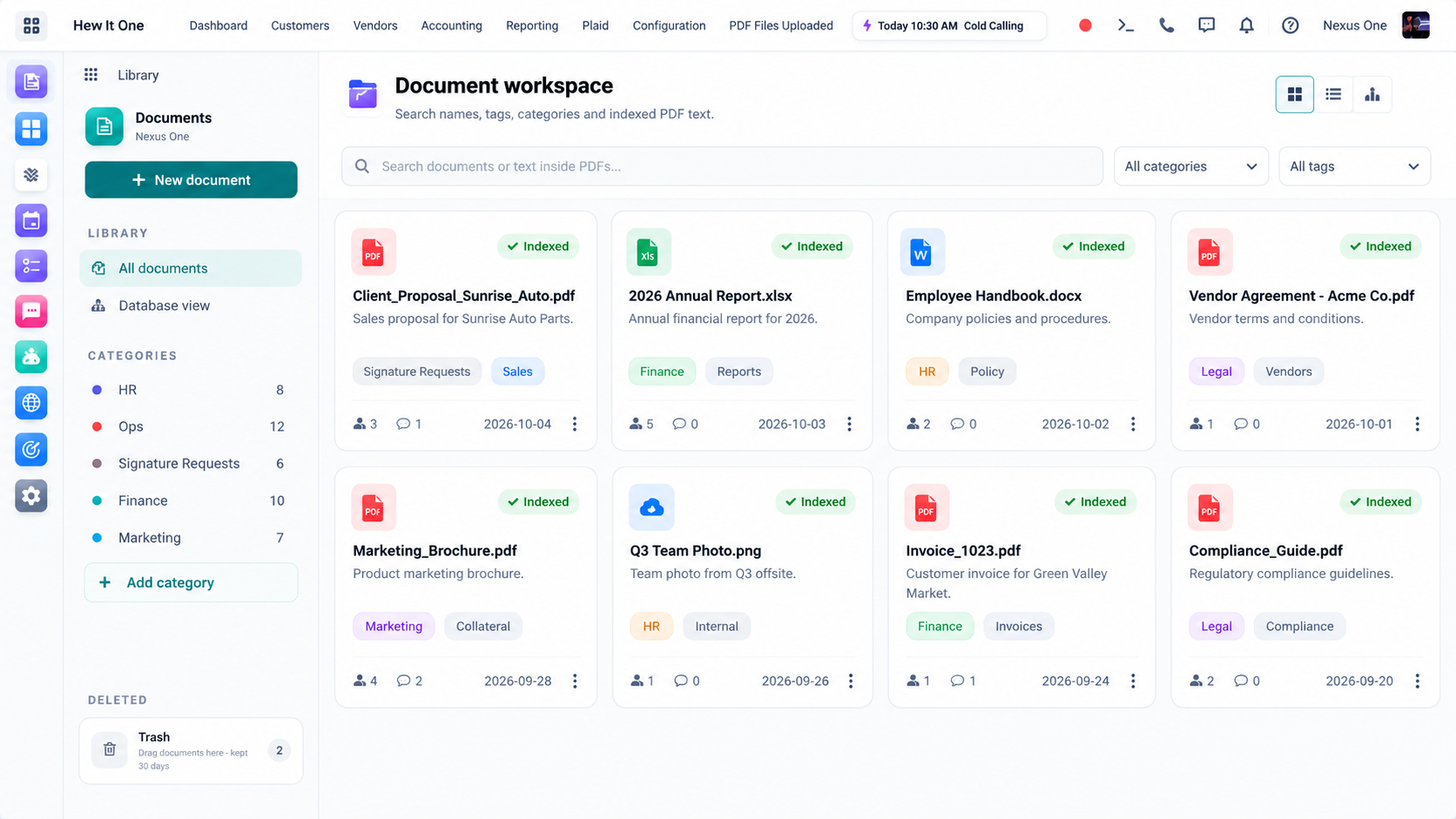
Documents

Documents in HR. Manage employees and workforce operations.

Steps

  1. 1 Open HR from the Nexus One app launcher.
  2. 2 Go to Documents.
  3. 3 Review the available options and make your changes.
  4. 4 Save. Changes apply to users who have permission for this area.
HR

Fleet Access

Fleet Access in HR. Manage employees and workforce operations.

Steps

  1. 1 Open HR from the Nexus One app launcher.
  2. 2 Go to Fleet Access.
  3. 3 Review the available options and make your changes.
  4. 4 Save. Changes apply to users who have permission for this area.
HR

Location Permissions

Location Permissions in HR. Manage employees and workforce operations.

Steps

  1. 1 Open HR from the Nexus One app launcher.
  2. 2 Go to Location Permissions.
  3. 3 Review the available options and make your changes.
  4. 4 Save. Changes apply to users who have permission for this area.
HR

Troubleshooting

Troubleshooting in HR. Manage employees and workforce operations.

Checklist

  1. 1 Confirm the user has access to HR and the required permission.
  2. 2 Check System Status for active incidents.
  3. 3 Refresh and try the action again.
  4. 4 Contact Support with what you tried and any error message.
Documents

Upload Documents

Upload Documents in Documents. Store and organize business documents inside Nexus One.

Steps

  1. 1 Open Documents from the Nexus One app launcher.
  2. 2 Go to Upload Documents.
  3. 3 Review the available options and make your changes.
  4. 4 Save. Changes apply to users who have permission for this area.
Documents

Folders

Folders in Documents. Store and organize business documents inside Nexus One.

Steps

  1. 1 Open Documents from the Nexus One app launcher.
  2. 2 Go to Folders.
  3. 3 Review the available options and make your changes.
  4. 4 Save. Changes apply to users who have permission for this area.
Documents

Search

Search in Documents. Store and organize business documents inside Nexus One.

Steps

  1. 1 Open Documents from the Nexus One app launcher.
  2. 2 Go to Search.
  3. 3 Review the available options and make your changes.
  4. 4 Save. Changes apply to users who have permission for this area.
Documents

Sharing

Sharing in Documents. Store and organize business documents inside Nexus One.

Steps

  1. 1 Open Documents from the Nexus One app launcher.
  2. 2 Go to Sharing.
  3. 3 Review the available options and make your changes.
  4. 4 Save. Changes apply to users who have permission for this area.
Documents

Permissions

Permissions in Documents. Store and organize business documents inside Nexus One.

Steps

  1. 1 Open Documents from the Nexus One app launcher.
  2. 2 Go to Permissions.
  3. 3 Review the available options and make your changes.
  4. 4 Save. Changes apply to users who have permission for this area.
Documents

Employee Documents

Employee Documents in Documents. Store and organize business documents inside Nexus One.

Steps

  1. 1 Open Documents from the Nexus One app launcher.
  2. 2 Go to Employee Documents.
  3. 3 Review the available options and make your changes.
  4. 4 Save. Changes apply to users who have permission for this area.
Documents

Customer Documents

Customer Documents in Documents. Store and organize business documents inside Nexus One.

Steps

  1. 1 Open Documents from the Nexus One app launcher.
  2. 2 Go to Customer Documents.
  3. 3 Review the available options and make your changes.
  4. 4 Save. Changes apply to users who have permission for this area.
Documents

File Security

File Security in Documents. Store and organize business documents inside Nexus One.

Steps

  1. 1 Open Documents from the Nexus One app launcher.
  2. 2 Go to File Security.
  3. 3 Review the available options and make your changes.
  4. 4 Save. Changes apply to users who have permission for this area.
Documents

Delete & Restore

Delete & Restore in Documents. Store and organize business documents inside Nexus One.

Steps

  1. 1 Open Documents from the Nexus One app launcher.
  2. 2 Go to Delete & Restore.
  3. 3 Review the available options and make your changes.
  4. 4 Save. Changes apply to users who have permission for this area.
Documents

Troubleshooting

Troubleshooting in Documents. Store and organize business documents inside Nexus One.

Checklist

  1. 1 Confirm the user has access to Documents and the required permission.
  2. 2 Check System Status for active incidents.
  3. 3 Refresh and try the action again.
  4. 4 Contact Support with what you tried and any error message.
Docs /
Apps /
Discuss D

Discuss

Internal team communication inside Nexus One.

Nexus One dashboard
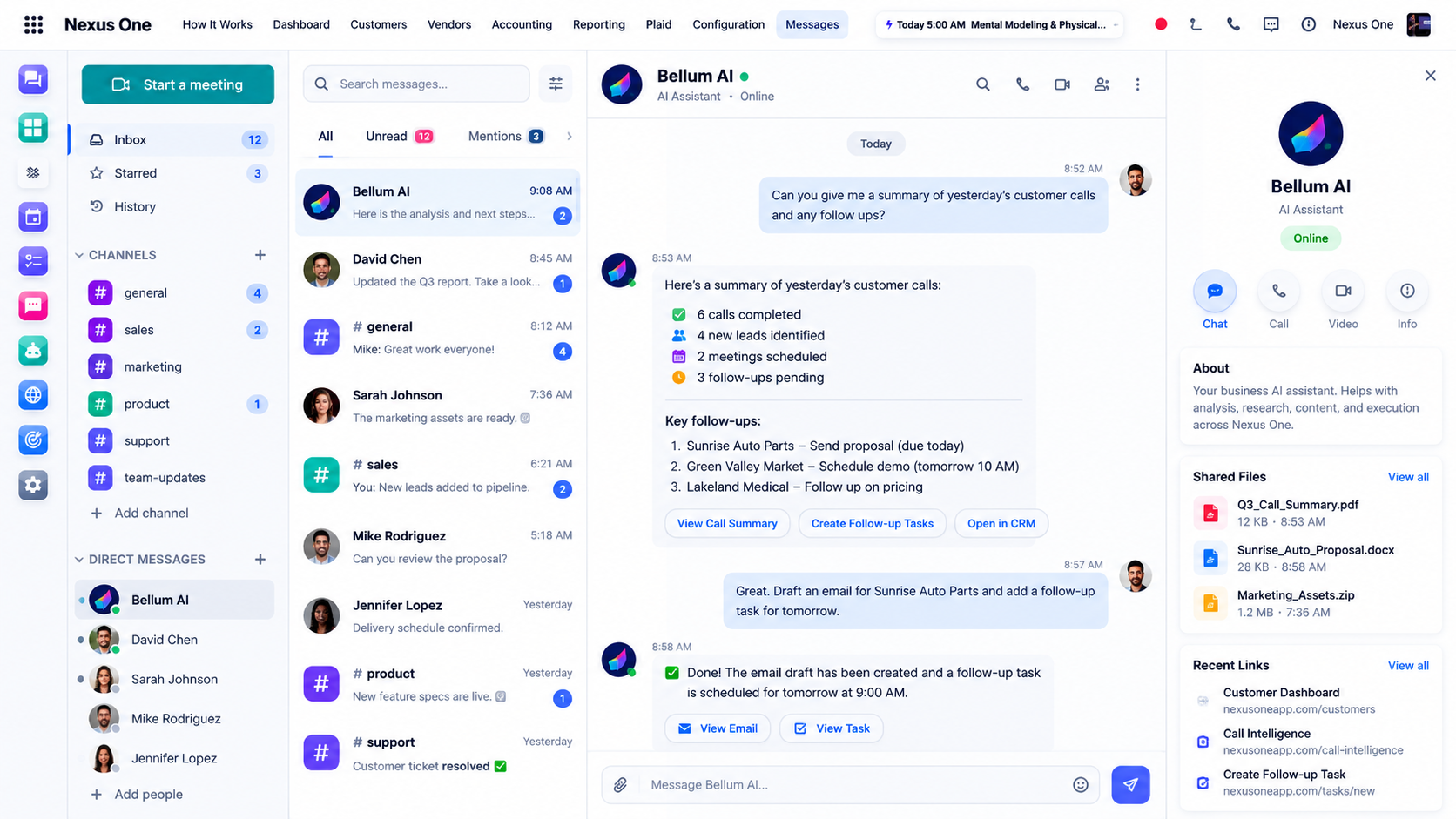
Discuss: inbox, channels, direct messages, and Bellum AI working alongside your team.
Discuss

Conversations

Conversations in Discuss. Internal team communication inside Nexus One.

Steps

  1. 1 Open Discuss from the Nexus One app launcher.
  2. 2 Go to Conversations.
  3. 3 Review the available options and make your changes.
  4. 4 Save. Changes apply to users who have permission for this area.
Discuss

Channels

Channels in Discuss. Internal team communication inside Nexus One.

Steps

  1. 1 Open Discuss from the Nexus One app launcher.
  2. 2 Go to Channels.
  3. 3 Review the available options and make your changes.
  4. 4 Save. Changes apply to users who have permission for this area.
Discuss

Direct Messages

Direct Messages in Discuss. Internal team communication inside Nexus One.

Steps

  1. 1 Open Discuss from the Nexus One app launcher.
  2. 2 Go to Direct Messages.
  3. 3 Review the available options and make your changes.
  4. 4 Save. Changes apply to users who have permission for this area.
Discuss

Teams

Teams in Discuss. Internal team communication inside Nexus One.

Steps

  1. 1 Open Discuss from the Nexus One app launcher.
  2. 2 Go to Teams.
  3. 3 Review the available options and make your changes.
  4. 4 Save. Changes apply to users who have permission for this area.
Discuss

Attachments

Attachments in Discuss. Internal team communication inside Nexus One.

Steps

  1. 1 Open Discuss from the Nexus One app launcher.
  2. 2 Go to Attachments.
  3. 3 Review the available options and make your changes.
  4. 4 Save. Changes apply to users who have permission for this area.
Discuss

Notifications

Notifications in Discuss. Internal team communication inside Nexus One.

Steps

  1. 1 Open Discuss from the Nexus One app launcher.
  2. 2 Go to Notifications.
  3. 3 Review the available options and make your changes.
  4. 4 Save. Changes apply to users who have permission for this area.
Discuss

Search

Search in Discuss. Internal team communication inside Nexus One.

Steps

  1. 1 Open Discuss from the Nexus One app launcher.
  2. 2 Go to Search.
  3. 3 Review the available options and make your changes.
  4. 4 Save. Changes apply to users who have permission for this area.
Discuss

Permissions

Permissions in Discuss. Internal team communication inside Nexus One.

Steps

  1. 1 Open Discuss from the Nexus One app launcher.
  2. 2 Go to Permissions.
  3. 3 Review the available options and make your changes.
  4. 4 Save. Changes apply to users who have permission for this area.
Discuss

Troubleshooting

Troubleshooting in Discuss. Internal team communication inside Nexus One.

Checklist

  1. 1 Confirm the user has access to Discuss and the required permission.
  2. 2 Check System Status for active incidents.
  3. 3 Refresh and try the action again.
  4. 4 Contact Support with what you tried and any error message.
Docs /
Apps /
Project P

Project

Manage jobs, projects, tasks, assignments, and business work.

Nexus One dashboard
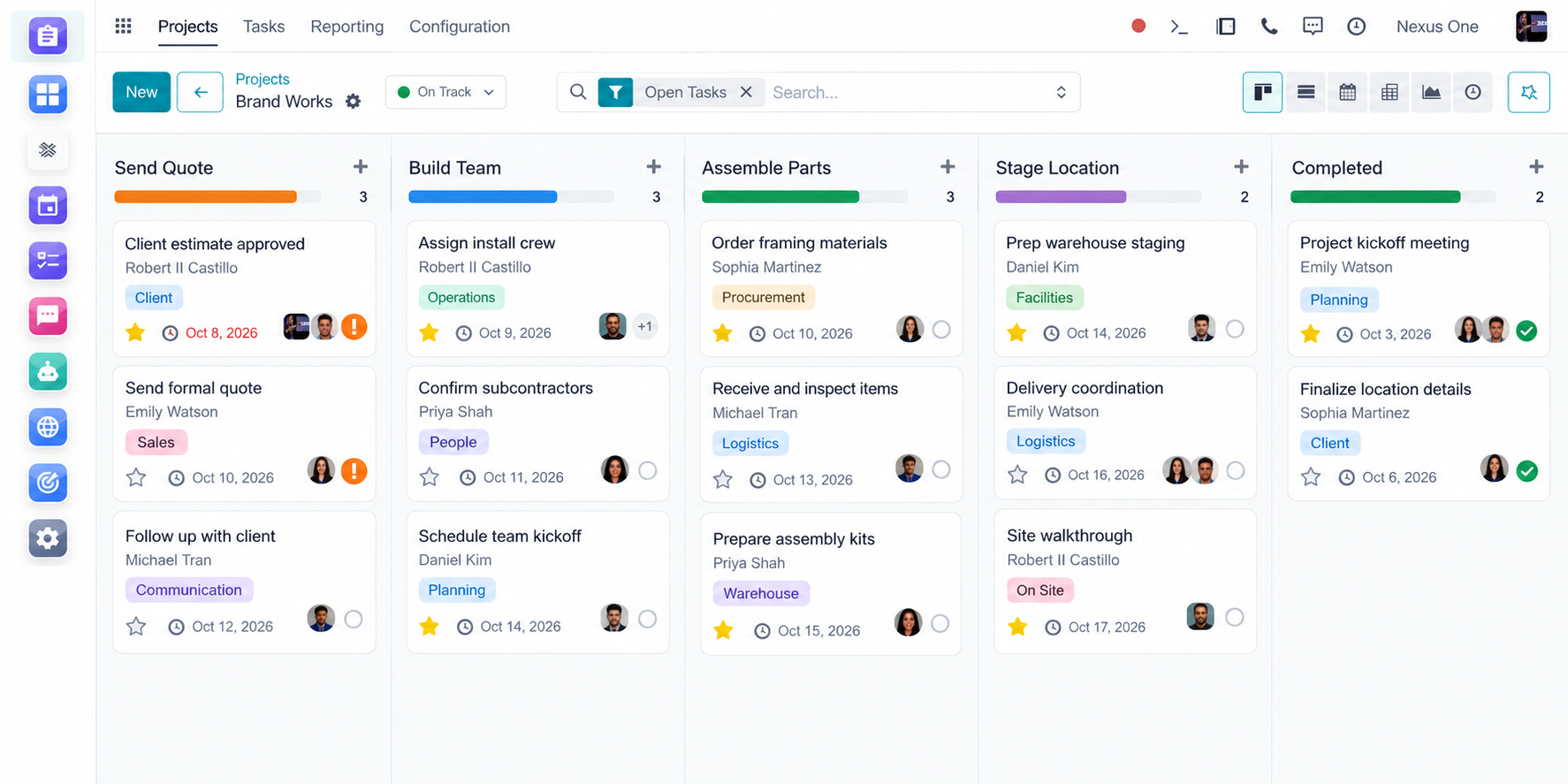
Project board: tasks organized by stage with owners, due dates, and progress.
Project

Create a Project

Create a Project in Project. Manage jobs, projects, tasks, assignments, and business work.

Steps

  1. 1 Open Project from the Nexus One app launcher.
  2. 2 Go to Create a Project.
  3. 3 Review the available options and make your changes.
  4. 4 Save. Changes apply to users who have permission for this area.
Project

Tasks

Tasks in Project. Manage jobs, projects, tasks, assignments, and business work.

Nexus One dashboard

Steps

  1. 1 Open Project from the Nexus One app launcher.
  2. 2 Go to Tasks.
  3. 3 Review the available options and make your changes.
  4. 4 Save. Changes apply to users who have permission for this area.
Project

Assign Users

Assign Users in Project. Manage jobs, projects, tasks, assignments, and business work.

Steps

  1. 1 Open Project from the Nexus One app launcher.
  2. 2 Go to Assign Users.
  3. 3 Review the available options and make your changes.
  4. 4 Save. Changes apply to users who have permission for this area.
Project

Deadlines

Deadlines in Project. Manage jobs, projects, tasks, assignments, and business work.

Steps

  1. 1 Open Project from the Nexus One app launcher.
  2. 2 Go to Deadlines.
  3. 3 Review the available options and make your changes.
  4. 4 Save. Changes apply to users who have permission for this area.
Project

Stages

Stages in Project. Manage jobs, projects, tasks, assignments, and business work.

Steps

  1. 1 Open Project from the Nexus One app launcher.
  2. 2 Go to Stages.
  3. 3 Review the available options and make your changes.
  4. 4 Save. Changes apply to users who have permission for this area.
Project

Files

Files in Project. Manage jobs, projects, tasks, assignments, and business work.

Steps

  1. 1 Open Project from the Nexus One app launcher.
  2. 2 Go to Files.
  3. 3 Review the available options and make your changes.
  4. 4 Save. Changes apply to users who have permission for this area.
Project

Discussions

Discussions in Project. Manage jobs, projects, tasks, assignments, and business work.

Steps

  1. 1 Open Project from the Nexus One app launcher.
  2. 2 Go to Discussions.
  3. 3 Review the available options and make your changes.
  4. 4 Save. Changes apply to users who have permission for this area.
Project

Time Tracking

Time Tracking in Project. Manage jobs, projects, tasks, assignments, and business work.

Steps

  1. 1 Open Project from the Nexus One app launcher.
  2. 2 Go to Time Tracking.
  3. 3 Review the available options and make your changes.
  4. 4 Save. Changes apply to users who have permission for this area.
Project

Project Reports

Project Reports in Project. Manage jobs, projects, tasks, assignments, and business work.

Steps

  1. 1 Open Project from the Nexus One app launcher.
  2. 2 Go to Project Reports.
  3. 3 Review the available options and make your changes.
  4. 4 Save. Changes apply to users who have permission for this area.
Project

Troubleshooting

Troubleshooting in Project. Manage jobs, projects, tasks, assignments, and business work.

Checklist

  1. 1 Confirm the user has access to Project and the required permission.
  2. 2 Check System Status for active incidents.
  3. 3 Refresh and try the action again.
  4. 4 Contact Support with what you tried and any error message.
Ads Manager AM

Ads Manager

COMING SOON

Manage advertising campaigns and performance from Nexus One.

Coming Soon. Ads Manager is not currently available. These pages preview planned documentation only.
Ads Manager

Campaigns

Coming Soon

Campaigns in Ads Manager. Manage advertising campaigns and performance from Nexus One.

Coming Soon. Ads Manager is not currently available. These pages preview planned documentation only.
Ads Manager

Audiences

Coming Soon

Audiences in Ads Manager. Manage advertising campaigns and performance from Nexus One.

Coming Soon. Ads Manager is not currently available. These pages preview planned documentation only.
Ads Manager

Creative

Coming Soon

Creative in Ads Manager. Manage advertising campaigns and performance from Nexus One.

Coming Soon. Ads Manager is not currently available. These pages preview planned documentation only.
Ads Manager

Budgets

Coming Soon

Budgets in Ads Manager. Manage advertising campaigns and performance from Nexus One.

Coming Soon. Ads Manager is not currently available. These pages preview planned documentation only.
Ads Manager

Analytics

Coming Soon

Analytics in Ads Manager. Manage advertising campaigns and performance from Nexus One.

Coming Soon. Ads Manager is not currently available. These pages preview planned documentation only.
Ads Manager

AI Optimization

Coming Soon

AI Optimization in Ads Manager. Manage advertising campaigns and performance from Nexus One.

Coming Soon. Ads Manager is not currently available. These pages preview planned documentation only.
Ads Manager

Connected Advertising Accounts

Coming Soon

Connected Advertising Accounts in Ads Manager. Manage advertising campaigns and performance from Nexus One.

Coming Soon. Ads Manager is not currently available. These pages preview planned documentation only.

Setup

Set up your Nexus One organization, invite your team, and turn on the apps your business uses.

Steps

  1. 1 Create your organization and confirm your business details.
  2. 2 Invite users and assign each one a role.
  3. 3 Turn on the Nexus One apps your team needs from the app launcher.
  4. 4 Connect integrations such as email, calendar, payments, and communications.
  5. 5 Review permissions before giving users access to sensitive data.

Dashboard

The Nexus One dashboard is where every user starts. It shows the apps your role can access and the work that needs attention.

On the dashboard

App launcher Every app your role has access to.
Recent activity Updates across connected apps.
Notifications & approvals Items waiting on you.
Bellum AI Ask questions about your business data.

Google

Placeholder

Connect Google Workspace, Gmail, Calendar, and Drive to Nexus One.

Placeholder guide. Integration steps will be finalized with each connector release.

Steps

  1. 1 Open Settings → Integrations in Nexus One.
  2. 2 Select Google.
  3. 3 Sign in and approve the requested permissions.
  4. 4 Choose which Nexus One apps can use the connection.

Email

Placeholder

Connect your business email accounts to Nexus One.

Placeholder guide. Integration steps will be finalized with each connector release.

Steps

  1. 1 Open Settings → Integrations in Nexus One.
  2. 2 Select Email.
  3. 3 Sign in and approve the requested permissions.
  4. 4 Choose which Nexus One apps can use the connection.

Calendar

Placeholder

Connect Google or Microsoft calendars to Nexus One.

Placeholder guide. Integration steps will be finalized with each connector release.

Steps

  1. 1 Open Settings → Integrations in Nexus One.
  2. 2 Select Calendar.
  3. 3 Sign in and approve the requested permissions.
  4. 4 Choose which Nexus One apps can use the connection.

Payments

Placeholder

Connect supported payment providers to Nexus One.

Placeholder guide. Integration steps will be finalized with each connector release.

Steps

  1. 1 Open Settings → Integrations in Nexus One.
  2. 2 Select Payments.
  3. 3 Sign in and approve the requested permissions.
  4. 4 Choose which Nexus One apps can use the connection.

Communications

Placeholder

Connect phone and messaging providers such as Twilio or Ringover to Nexus One.

Placeholder guide. Integration steps will be finalized with each connector release.

Steps

  1. 1 Open Settings → Integrations in Nexus One.
  2. 2 Select Communications.
  3. 3 Sign in and approve the requested permissions.
  4. 4 Choose which Nexus One apps can use the connection.

Authentication

Example

Every request to the Nexus One API and MCP server must be authenticated with credentials issued to your organization.

Requirements

Bearer token Send credentials in the Authorization header over HTTPS.
Least privilege Request only the scopes the integration needs.
Secret storage Keep keys in a server-side secret manager.
Revocation Rotate and revoke keys that are no longer used.
Example requestPLACEHOLDER
curl https://api.nexusoneapp.com/v1/me \
  -H "Authorization: Bearer YOUR_API_KEY"
Manage API keys →

Security for every connection

Authentication Least privilege Permission scopes Secret management Organization isolation Logging Revocation Human approval for sensitive actions
Never place Nexus One secret keys inside client-side JavaScript, public repositories, screenshots, prompts, or shared documents.

OAuth

Coming Soon

OAuth will let third-party applications request access to a Nexus One organization on behalf of a user, with explicit consent and scoped permissions.

Coming soon. This page will be published with the final Nexus One API specification.

Errors

Coming Soon

Error codes, status codes, and response formats for the Nexus One API.

Coming soon. This page will be published with the final Nexus One API specification.

Rate Limits

Coming Soon

Request limits per organization and API key, and how to handle limit responses.

Coming soon. This page will be published with the final Nexus One API specification.

Changelog

Coming Soon

Release notes for the Nexus One API and MCP server.

Coming soon. This page will be published with the final Nexus One API specification.

Security Overview

Nexus One applies the same security expectations to people, integrations, and AI systems that connect to your organization.

Principles

Authentication Every user, key, and connection is verified.
Least privilege Access is limited to what each role needs.
Permission scopes API keys and MCP connections are scoped per app.
Secret management Keys stay server-side and are never shared.
Organization isolation Each organization’s data is kept separate.
Logging Activity is recorded for review.
Revocation Access can be removed at any time.
Human approval Sensitive actions require a person to approve.
Read the Nexus One Security page ↗

Permissions

Access in Nexus One is granted by organization, user, role, application, and permission. API keys and MCP connections follow the same rules.

Access depends on

Organization The workspace the user or key belongs to.
Role The set of apps and actions assigned to a user.
Application Which Nexus One apps are enabled.
API scope What a key or connection is allowed to do.
Administrative approval Admins approve sensitive access.

Data Protection

Placeholder

How Nexus One handles the business data stored across your apps.

Placeholder. Detailed data protection documentation is in progress. See the Privacy Policy and Trust Center for current commitments.
Open the Trust Center ↗

Troubleshooting

Start here when something in Nexus One is not working as expected.

Checklist

  1. 1 Check System Status for incidents affecting your apps.
  2. 2 Confirm the user has permission for the app and action.
  3. 3 Refresh the page, or sign out and back in.
  4. 4 Review the app’s Troubleshooting page in this documentation.
  5. 5 Contact Support with the app name, the time, and any error message.
View System Status ↗
DEVELOPERS

Build on Nexus One

Connect external software through the Nexus One API, and connect AI assistants and agents through Nexus One MCP. Both use the same authentication and permission model as the rest of Nexus One.

Developers
DEMO
API Keys2 Active
MCP Connections3 Connected
Webhooks4 Active
API Requests12,482 this month
Recent Activity
Claude Desktop MCP Connected 2 minutes ago
Internal CRM Integration API Successful 12 minutes ago
Sales Webhook Webhook Delivered 18 minutes ago

Demo dashboard. Counts and activity shown are sample data.

API or MCP?

Security for every connection

Authentication Least privilege Permission scopes Secret management Organization isolation Logging Revocation Human approval for sensitive actions
Never place Nexus One secret keys inside client-side JavaScript, public repositories, screenshots, prompts, or shared documents.
DEVELOPERS · MCP

Nexus One MCP

Connect AI assistants and compatible AI systems directly to Nexus One.

Model Context Protocol (MCP) allows supported AI applications to securely discover and interact with tools made available by Nexus One.
AI Assistant
MCP Client
Nexus One MCP Server
Authentication & Permissions
Nexus One Apps
CRM Sales HR Projects Documents Accounting etc.

Connect to Nexus One using MCP

DEMO Demo configuration — not production credentials

MCP Server

Server URLDEMO ENDPOINT
https://api.nexusoneapp.com/mcp

Authentication

HeaderPLACEHOLDER
Authorization: Bearer YOUR_NEXUS_ONE_API_KEY
Dummy keyEXAMPLE ONLY
nx_demo_7Fk29Qp83ExampleOnly
Never expose API keys in frontend code or public repositories.

MCP client configuration

Example configuration — endpoint and credentials are placeholders.

mcp.jsonEXAMPLE
{
  "mcpServers": {
    "nexus-one": {
      "url": "https://api.nexusoneapp.com/mcp",
      "headers": {
        "Authorization": "Bearer YOUR_NEXUS_ONE_API_KEY"
      }
    }
  }
}

Example MCP Tool Catalog

EXAMPLE

These are interface examples only and will be replaced with the actual Nexus One MCP tool registry. They are not currently deployed endpoints.

10 example tools
TOOLDESCRIPTIONSTATUS
crm.search_contacts Search CRM contacts EXAMPLE
crm.get_contact Retrieve a contact EXAMPLE
crm.create_lead Create a lead EXAMPLE
sales.list_opportunities Retrieve sales opportunities EXAMPLE
projects.list_tasks Retrieve project tasks EXAMPLE
hr.list_employees Retrieve authorized employee records EXAMPLE
documents.search Search permitted documents EXAMPLE
inventory.search_products Search inventory EXAMPLE
appointments.list Retrieve appointments EXAMPLE
accounting.list_invoices Retrieve permitted invoices EXAMPLE

MCP respects Nexus One permissions

An MCP connection should not automatically have unrestricted access to an organization. Access should depend on:

Organization User Role Application Permission API scope Connected service Administrative approval
Claude Desktop · MCP connection PERMISSION EXAMPLE
CRM Read Contacts ✓ Create Leads ✓ Delete Contacts ✕
Accounting Read Invoices ✓ Create Payments ✕
HR Employee Directory ✓ Payroll ✕
Documents Search ✓ Delete ✕

MCP connection flow

DEMO WORKFLOW
STEP 1 Create an API connection
Nexus One→Settings→Developers→MCP & API
STEP 2 Create credentials Generate authorized credentials.
STEP 3 Select permissions Choose which applications the connection can access.
STEP 4 Add Nexus One to your MCP client Copy the MCP configuration.
STEP 5 Test connection Verify the connection and available tools.
STEP 6 Use Nexus One from your AI assistant The AI can access only permitted Nexus One capabilities.

MCP use cases

EXAMPLES
Sales Assistant“Show my highest-value open opportunities.”
CRM Assistant“Find the contact information for Acme Manufacturing.”
Project Assistant“What tasks are overdue this week?”
Inventory Assistant“Which products are low in stock?”
HR Assistant“Who is scheduled today?”
Business Intelligence“Give me a summary of today's business activity.”

API or MCP?

Security for every connection

Authentication Least privilege Permission scopes Secret management Organization isolation Logging Revocation Human approval for sensitive actions
Never place Nexus One secret keys inside client-side JavaScript, public repositories, screenshots, prompts, or shared documents.
DEVELOPERS · API

Nexus One API

Build applications, integrations, and automations connected to Nexus One.

Base URL

Base URLDEMO
https://api.nexusoneapp.com/v1

Authentication

Send your API key as a bearer token. The endpoint below is a placeholder.

cURLPLACEHOLDER ENDPOINT
curl https://api.nexusoneapp.com/v1/me \
  -H "Authorization: Bearer YOUR_API_KEY"

API key management

Settings→Developers→API Keys→Create API Key
Create API Key EXAMPLE SCREEN
Scopes ✓CRM Read ✓CRM Write ✓Products Read Accounting Write HR Sensitive Data
Create API Key
After creation, the key is shown once:
Secret keyEXAMPLE
nx_demo_A1B2C3D4E5F6
Example key only. Never display real secret keys in documentation.

API reference

Reference pages will be published as endpoints are finalized. Contacts includes an example page showing the planned format.

Security for every connection

Authentication Least privilege Permission scopes Secret management Organization isolation Logging Revocation Human approval for sensitive actions
Never place Nexus One secret keys inside client-side JavaScript, public repositories, screenshots, prompts, or shared documents.
DEVELOPERS · API KEYS

API Keys

Create scoped credentials for integrations and MCP connections. Give each key only the scopes it needs.

API key management

Settings→Developers→API Keys→Create API Key
Create API Key EXAMPLE SCREEN
Scopes ✓CRM Read ✓CRM Write ✓Products Read Accounting Write HR Sensitive Data
Create API Key
After creation, the key is shown once:
Secret keyEXAMPLE
nx_demo_A1B2C3D4E5F6
Example key only. Never display real secret keys in documentation.

Security for every connection

Authentication Least privilege Permission scopes Secret management Organization isolation Logging Revocation Human approval for sensitive actions
Never place Nexus One secret keys inside client-side JavaScript, public repositories, screenshots, prompts, or shared documents.
API REFERENCE · CONTACTS

Get contacts

EXAMPLE ENDPOINT
GET /v1/crm/contacts

Returns contacts available to the authenticated organization and permitted API scope.

The endpoint, fields, and response shown here are demonstration data and are not the final Nexus One API specification.

Parameters

limitMaximum number of contacts to return.
cursorCursor from a previous response for pagination.
searchFilter contacts by name, company, or email.

Example request

cURLEXAMPLE
curl "https://api.nexusoneapp.com/v1/crm/contacts?limit=20" \
  -H "Authorization: Bearer YOUR_API_KEY"

Example response

200 OK · JSONDEMO DATA
{
  "data": [
    {
      "id": "contact_demo_001",
      "name": "Jordan Lee",
      "company": "Example Company",
      "email": "jordan@example.com"
    }
  ],
  "next_cursor": null
}

Security for every connection

Authentication Least privilege Permission scopes Secret management Organization isolation Logging Revocation Human approval for sensitive actions
Never place Nexus One secret keys inside client-side JavaScript, public repositories, screenshots, prompts, or shared documents.
DEVELOPERS · WEBHOOKS

Webhooks

A webhook is a message Nexus One sends to your server when something happens, such as a new lead or a paid invoice. Instead of asking the API for changes, your system receives them as they occur.

Event names

EXAMPLE EVENT NAMES
crm.lead.created crm.contact.updated sale.completed invoice.paid appointment.created project.task.completed employee.clocked_in

Example webhook

POST payloadEXAMPLE
{
  "id": "evt_demo_83H2",
  "type": "crm.lead.created",
  "created_at": "2026-10-05T12:00:00Z",
  "data": {
    "lead_id": "lead_demo_001"
  }
}

Webhook security

Recommended practices for receiving webhooks. Exact signing and retry behavior will be documented once implemented.

HTTPS endpointsOnly receive webhooks on HTTPS URLs.
Secret verificationVerify each request against your webhook secret.
Event IDsUse the event ID to identify each delivery.
Retry handlingExpect that a delivery may be sent again.
IdempotencyProcess the same event once, even if received twice.
LoggingLog deliveries so issues can be traced.

Security for every connection

Authentication Least privilege Permission scopes Secret management Organization isolation Logging Revocation Human approval for sensitive actions
Never place Nexus One secret keys inside client-side JavaScript, public repositories, screenshots, prompts, or shared documents.